Configure Odoo
Get your Odoo API credentials to connect Order Invoicer
Prerequisites
Before you begin, make sure that:
- You have an Odoo account (Odoo Online or Odoo.sh, version 15+)
- You have administrator access or sufficient rights to create API keys
- You know the URL of your Odoo instance (e.g.
https://mycompany.odoo.com)
Get your API credentials
Order Invoicer needs three pieces of information to connect to your Odoo instance:
- The URL of your Odoo instance
- The database name
- An API Key
Identify your Odoo URL
Your Odoo URL is the address you use to access your instance:
- Odoo Online:
https://mycompany.odoo.com - Odoo.sh:
https://mycompany.odoo.comor a custom subdomain - On-premise: your server's URL (e.g.
https://erp.mycompany.com)
The URL must start with https://. If your instance is not on HTTPS, contact your system administrator.
Find your database name
The database name depends on your hosting type:
- Odoo Online: the database name usually matches the subdomain of your URL (e.g. for
https://mycompany.odoo.com, the database ismycompany) - Odoo.sh: check your Odoo.sh dashboard for the exact name
- On-premise: ask your system administrator
To verify your database name:
- Go to
https://your-odoo-url.com/web/database/manager - The list of available databases is displayed
- Note the exact name of your database
If your Odoo Online instance is multi-database, make sure to select the correct database. When in doubt, it is the subdomain in your URL.
Generate an API key
Odoo uses API keys for secure authentication. Here's how to create one:
- Log in to your Odoo instance
- Click your avatar in the top right, then My Profile (or Preferences)
- Go to the Account Security tab
- In the API Keys section, click New API Key
- Enter a description (e.g.
Order Invoicer) - If two-factor authentication is enabled, enter your TOTP code
- Copy the displayed key immediately
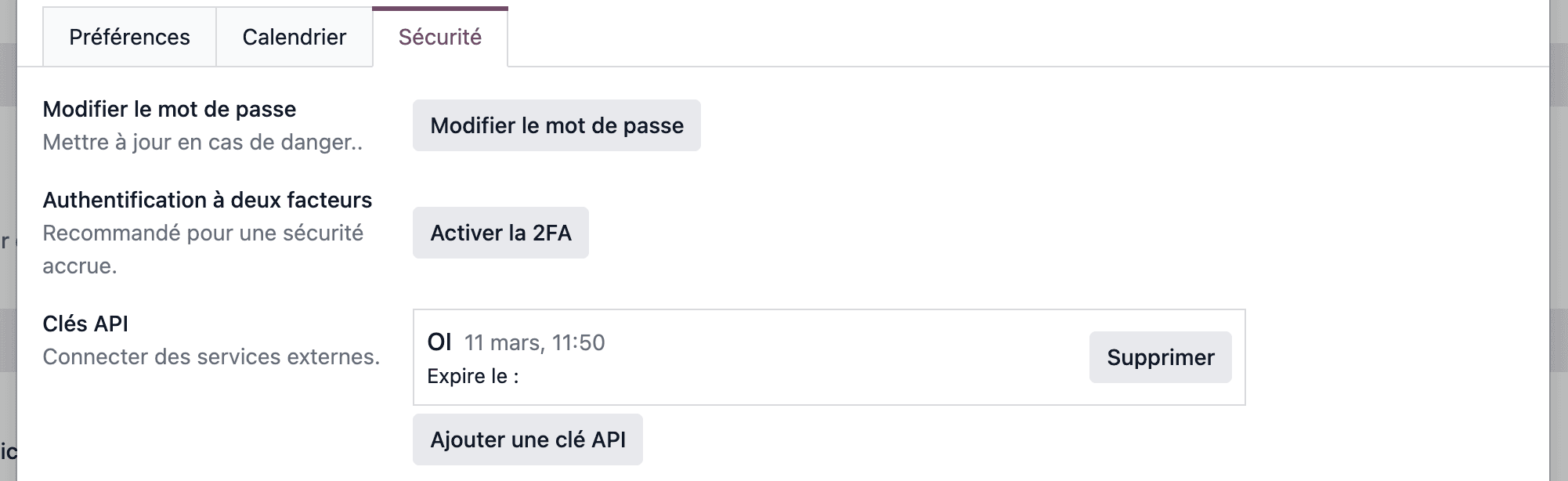
The API key is displayed only once. If you lose it, you will need to generate a new one from your profile's security settings.
If you don't see the "API Keys" section, check that your Odoo version is 14 or higher. API keys are not available on earlier versions.
Configure permissions
The user associated with the API key must have the following rights in Odoo:
Accounting / Invoicing
- ✅ Read and create invoices
- ✅ Read and create credit notes
- ✅ Read and create payments
Contacts
- ✅ Read, create and edit contacts (partners)
Sales (if you sync purchase orders)
- ✅ Read and create purchase orders
Products
- ✅ Read products
To check the user's rights:
- Go to Settings > Users & Companies > Users
- Select the user associated with the API key
- Check that the rights above are granted
We recommend using an administrator account or creating a dedicated user with the necessary permissions to avoid rights-related errors.
Enter your credentials in Order Invoicer
From the Odoo connection form in Order Invoicer, enter:
- Odoo URL: the full URL of your instance (e.g.
https://mycompany.odoo.com) - Database name: the name of your Odoo database
- API Key: the key generated in the previous step
The connector will automatically validate your credentials by querying the Odoo API and check your account's permissions.
Customer sync
With the customer sync (“Customers from your store”), the sync mode sets whether to create the customers missing from Odoo, update the existing partners, or both (default: create only, which only fills in a missing VAT number, SIRET, SIREN and country). An update brings over your store's name, email, phone, address, VAT number, SIRET and SIREN when they differ; an empty field in your store never clears a value. You can also pick the mode when you start a manual customer sync.
Troubleshooting
"We couldn't reach an Odoo server" error
This almost always means the URL isn't your Odoo instance:
- Enter your Odoo backend address — the one in your browser's address bar
when you're logged into Odoo (e.g.
https://mycompany.odoo.com). - Do not enter the domain of your online shop or point of sale — those are separate sites, not Odoo.
- Remove any
/odooor/webpath from the end of the URL — keep only the base address. - Make sure the address starts with
https://and that your instance is reachable from the internet.
"Odoo rejected your credentials" error
Odoo answered, but the database name or API key is wrong:
- Check that the database name is exact (it is case-sensitive)
- Make sure the API key is complete and was not truncated
- Regenerate the API key if in doubt (see step 4)
Conversions stopped: "Odoo refused the API key"
Odoo refuses the API key saved in Order Invoicer: it was deleted, regenerated or has expired. No document can be created any more, so the connector is paused and your orders wait.
- Create a new API key in Odoo (see step 3)
- In Order Invoicer, open the Odoo application, click Update credentials and enter the new key
- The connector resumes as soon as the key is validated. Waiting orders are retried automatically over the following days; to convert them right away, run the conversion again from each order
"Insufficient permissions" error
- Check the rights of the user associated with the API key (see step 4)
- Make sure the Accounting and Contacts modules are installed on your instance
"Connection failed" error
- Check that your Odoo instance is reachable from the internet
- If you use a firewall or VPN, make sure API connections are allowed
- Check that your instance is not under maintenance
Support
If you run into difficulties:
- Check the troubleshooting section above
- Refer to the official Odoo documentation
- Contact our support:
contact@orderinvoicer.com